
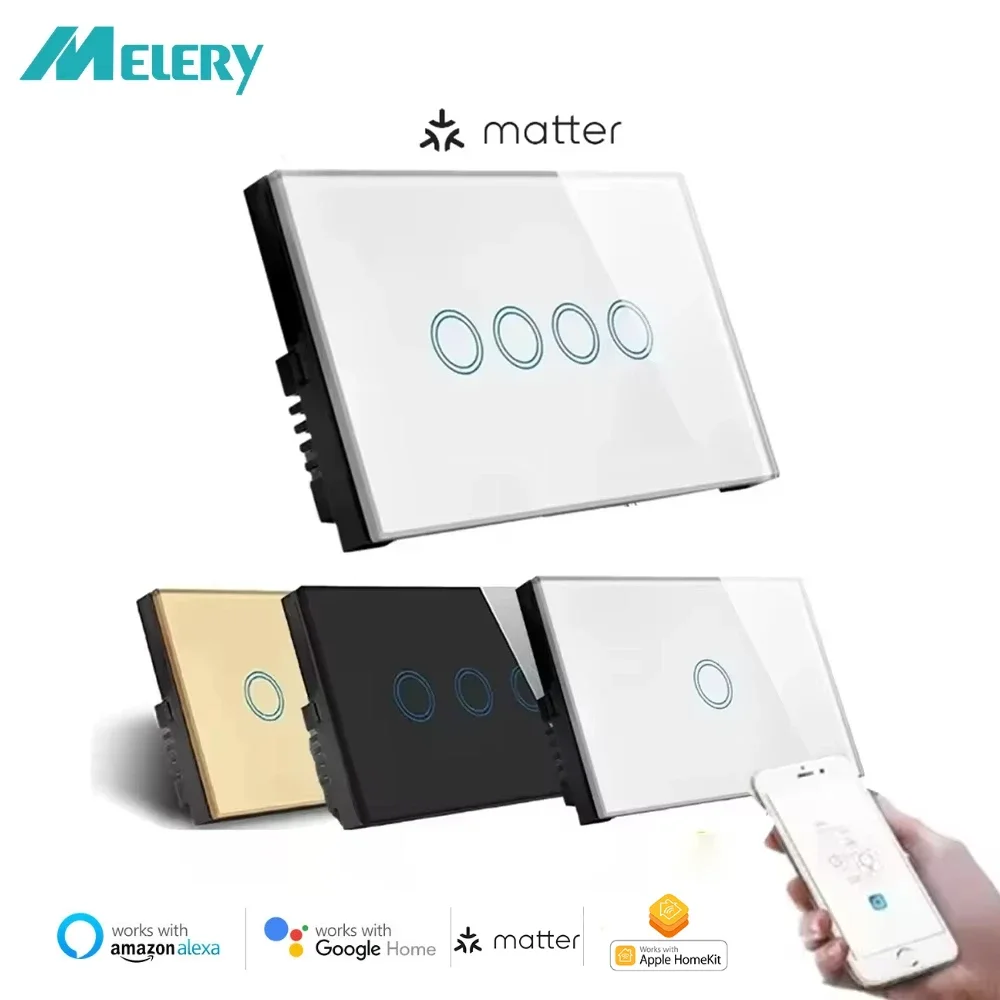
Melery Matter WiFi Smart Light Wall Switch Touch Sensor Glass Pannel Remote by Alexa Google Home Siri Homekit SmartThings
Return&refund policy
Eligible items are covered by return and refund support. If the item does not arrive or is not as described, the buyer can request help.
Security & Privacy
Safe payments: We do not share your personal details with any third parties without your consent.
Secure personal details: We protect your privacy and keep your personal details safe and secure.
AI offer for your market
A curated pick based on category, shipping route, delivery speed and popularity in your selected market.
Why this product fits your market
- • Estimated delivery: 7.
- • Recommendations focus on this product category and your market availability.
Product specifications
Detailed product description
This product is shown with available options, market-specific pricing and verified specifications.
- Brand: Melery
- Sales: 1
- Package size: 15 × 9 × 6 cm
- Package weight: 0.2 kg
- Rating: 0.0 / 5
Before adding to cart, choose an available option and check the quantity.
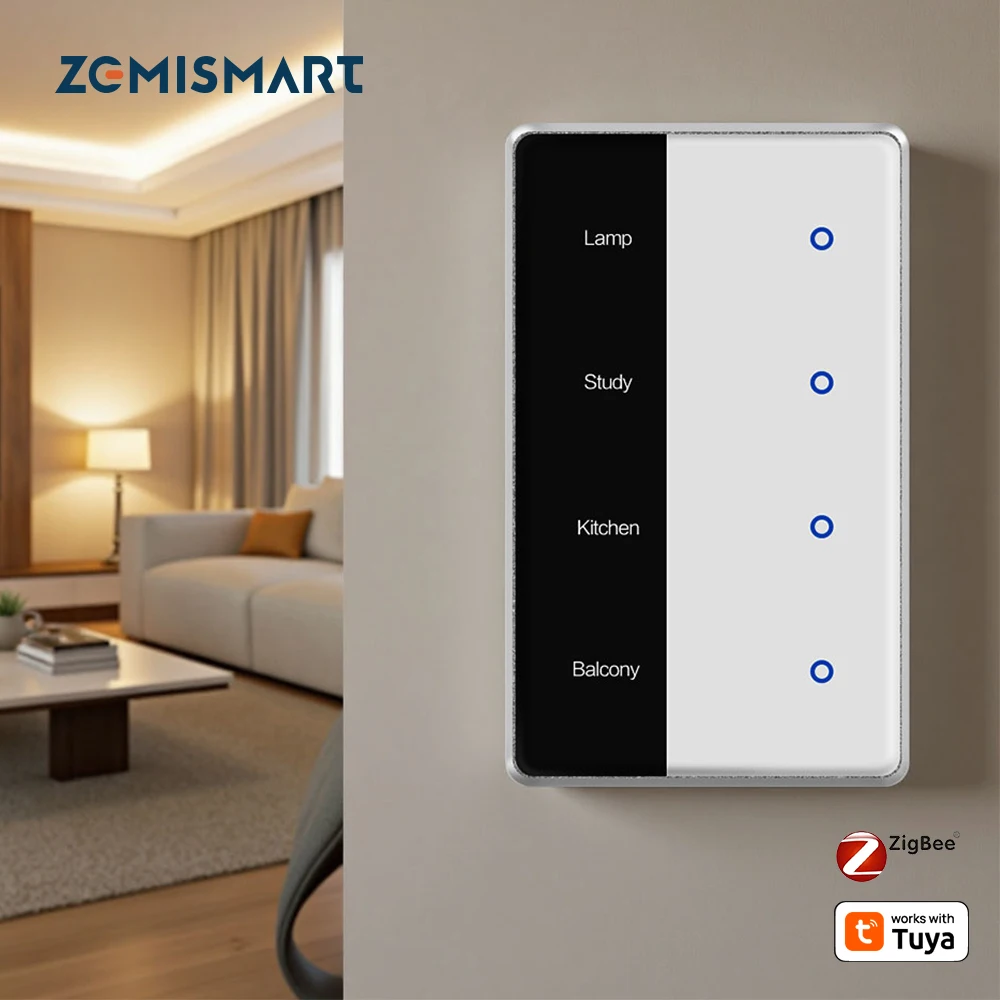
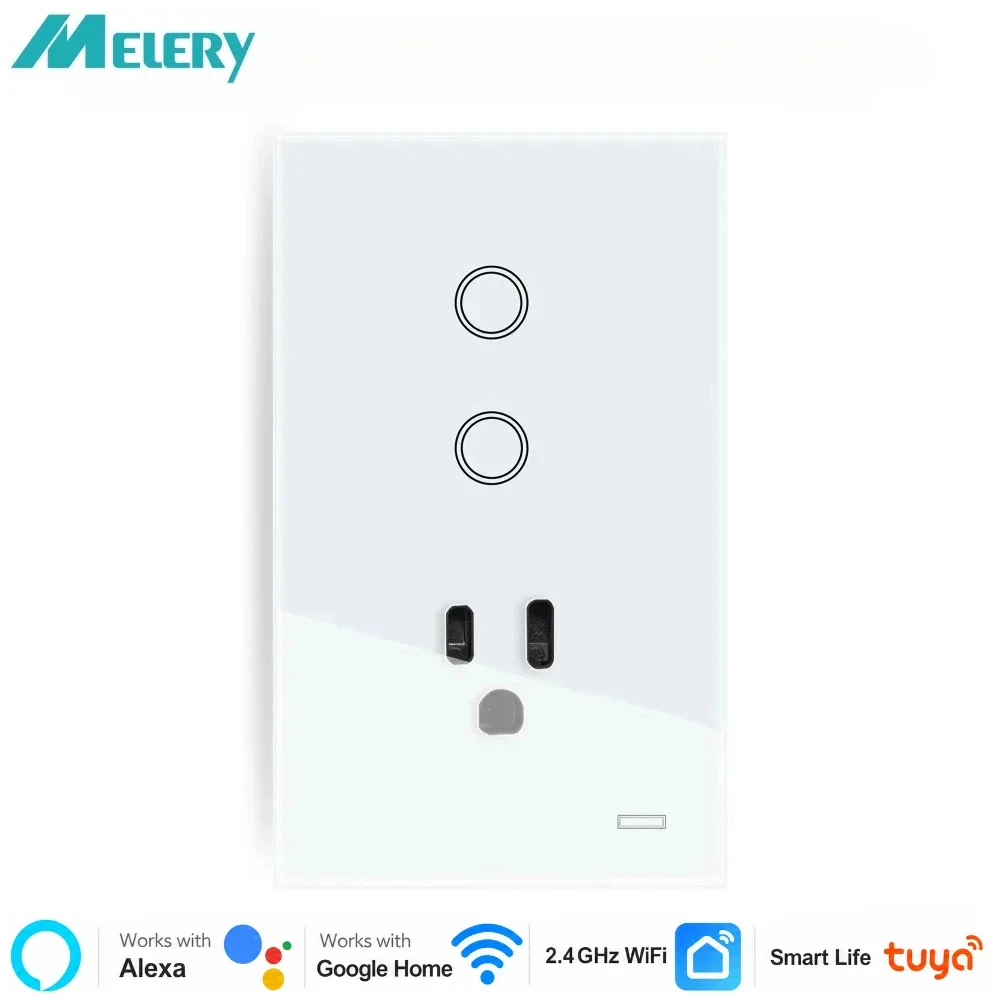
Matter WiFi Smart Switch Push Button Light Switch US Work with Home Google Home SmartThings APP Neutral Required
Specification
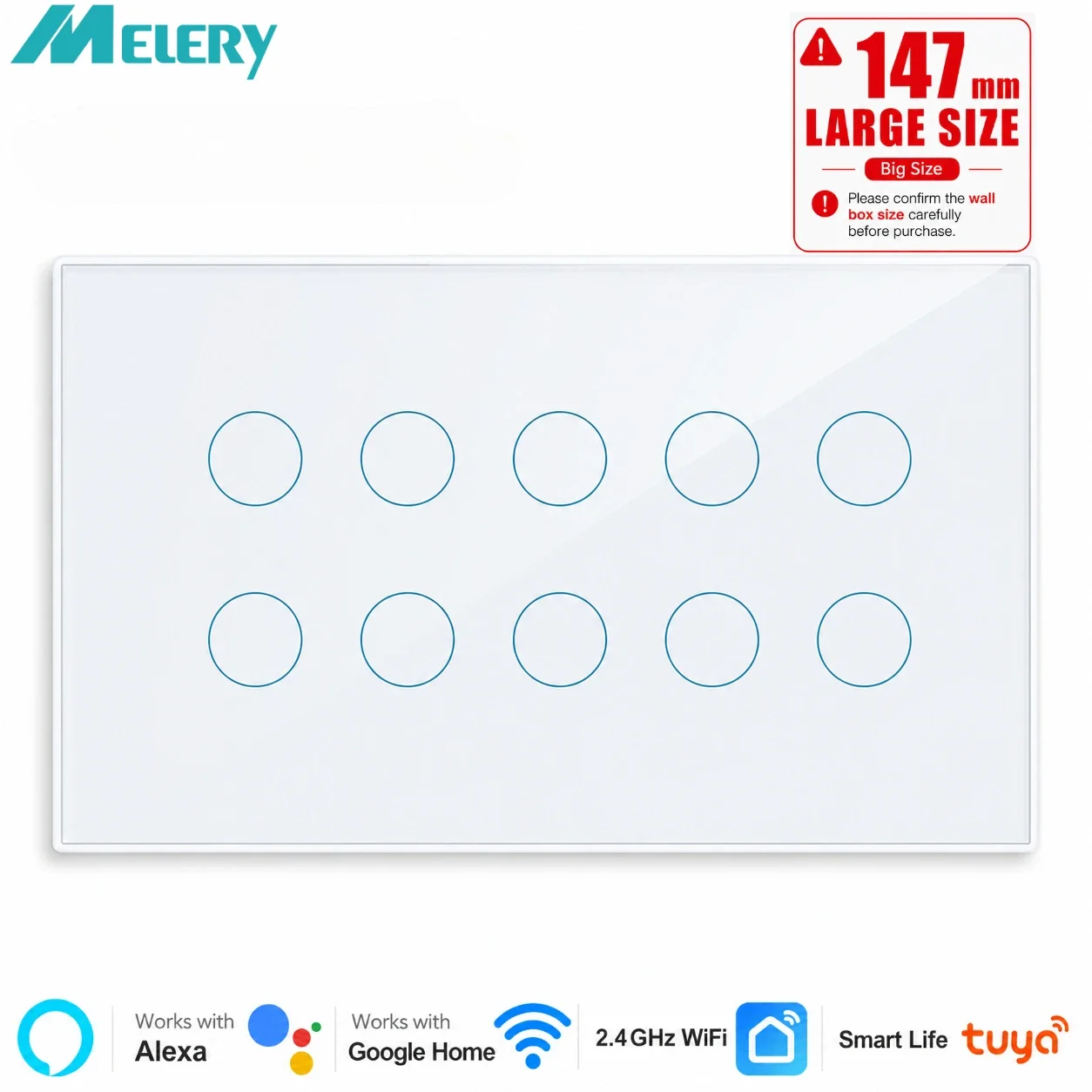
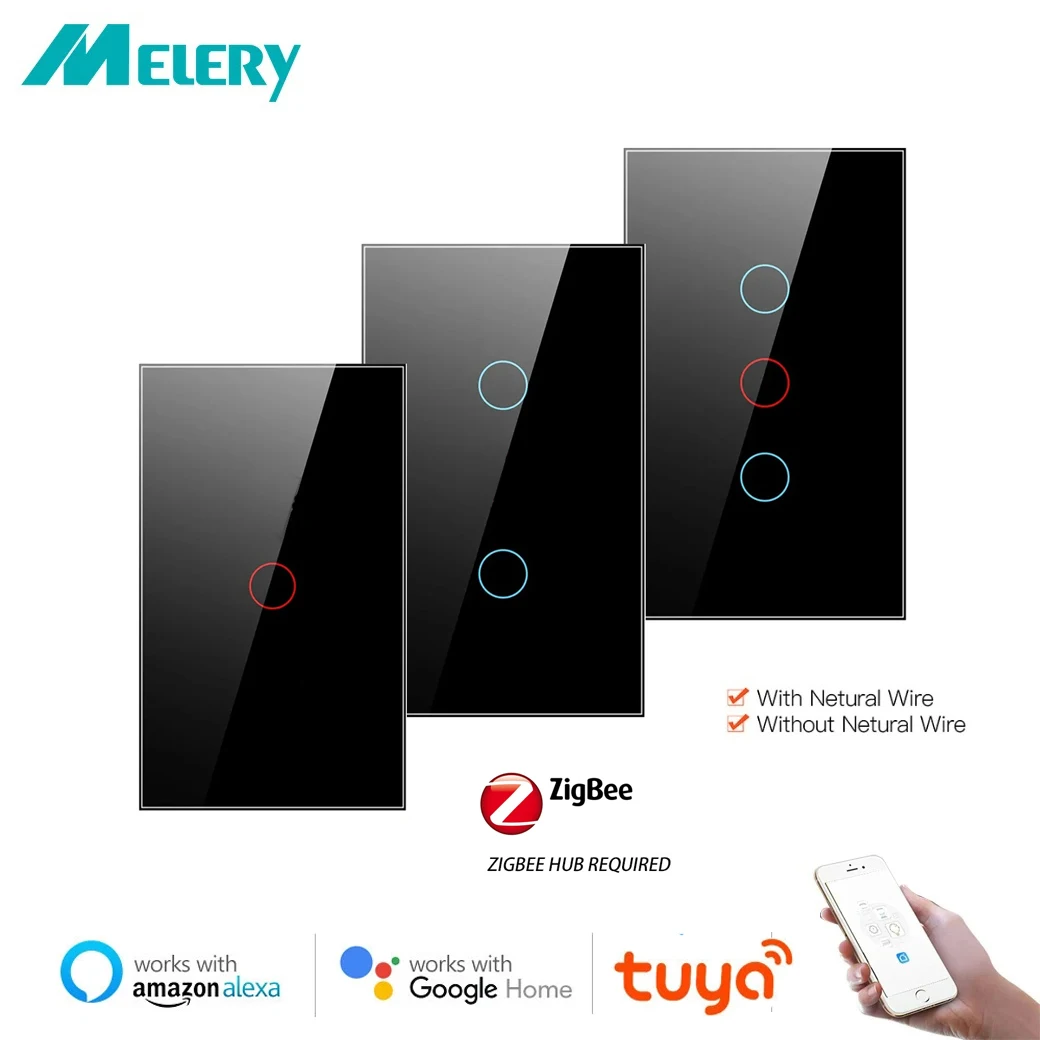
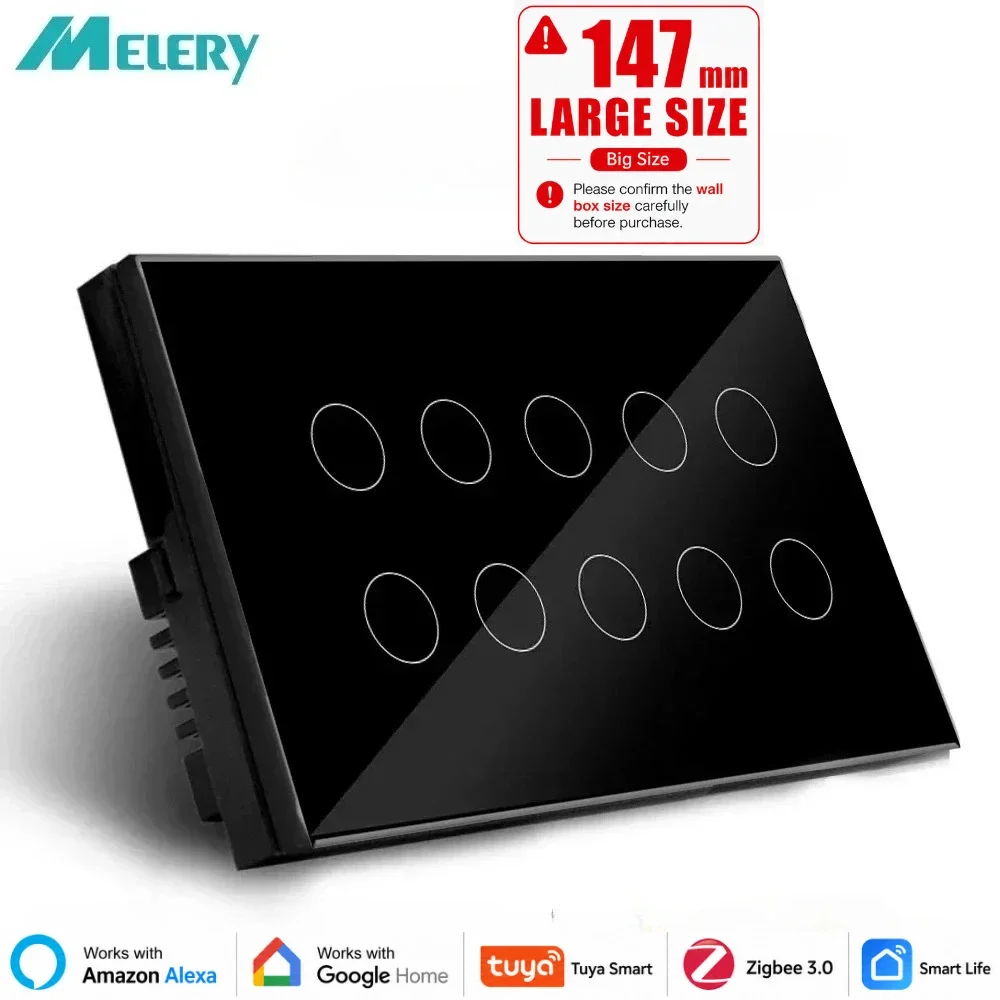
Type: 1/2/3/4 Gang Touch Wi-Fi Switch
Material: PC V0 fireproof + tempered glass panel
Rated Voltage: AC 100V-240V
Wi-Fi: 2.4GHz, IEEE 802.11 b/g/n
Support by: iOS
Wireless Power Consumption
Security mechanism: WPA-PSK/WPA2-PSK
Speaker - Voice Control
Voice control can be achieved through Alexa, Siri, Google Assistant or other speakers that have passed the Matter certification.
Voice Control via Alexa
Turning on/off the device: Alexa, turn on/off the light.
Adjusting the color: Alexa, set the light to red.
Adjusting the brightness: Alexa, set the light to 80%(dimmer function support if it is ).
Compatible with major voice assistants like Siri, enabling hands-free control of your home's lighting and appliances. Just speak your command and
watch your home respond.
App Control
The device can be controlled through the uhome+, Alexa, Apple Home, Google Home, Smartthings App or other apps that have integrated the Matter SDK.App Control
After the device is successfully configured to the network, you can use various apps or speakers to complete the control of functions such as switching on/off, brightness adjustment, and color adjustment
For sockets or switches, press and hold the button for 5 - 10 seconds to reset. During the reset process, the indicator light will blink three times. For lighting products, turn the power on and off five times. When resetting, the light will blink three times.
Device Network Configuration
Easy Setup & Group Control
It works with Apple HomeKit,Simply use smart WiFi switch and scan the HomeKit code, integrate and set up it, No require to install others APP.
Easy Setup, One Control
High-quality and luxury Design
High-quality and luxury design with Big physical button for push control. You can install it in your bedroom or living room. Its minimalist design complements any interior decor, making it not just a switch, but a statement piece.
Easy Installation
Designed for a straightforward DIY installation process. Fits into standard wall boxes and connects to your home WiFi network.
Time Setting
The intelligent timer switch will automatically turn on after setting a timer for this switch, which is essential for daily scheduling, and bring you a comfortable and intelligent lifestyle.
How many ways to Pair for the devices?
Network Configuration via the uHome+ App
Step 1: Download the uHome+ app from the application market.
Network Configuration via Apple Home App
1.Environment Check
The system version of the iPhone should be greater than or equal to version 16.2.
There should be a Matter control hub, and any of the following devices can be used: Home Pod, Home Pod mini, Apple TV.
Connect to a 2.4G WiFi network. The WiFi password cannot be blank or the WiFi cannot be hidden.
2.Network Configuration
Step 1: Put the device into the network configuration state.
Network Configuration via Alexa App
Version of the Alexa App: greater than or equal to.
There should be a Matter control hub, and any of the following devices can be used
Device
Version
Echo/Echo Dot
5th Gen: Echo Dot, Echo Dot (Gen 5 with Clock)
4th Gen: Echo, Echo Dot, Echo Dot (Gen 4 with Clock)
3rd Gen: Echo, Echo Dot, Echo Dot (Gen 3 with Clock)
Echo Show
3rd Gen: Echo Show 10, Echo Show 15
2nd Gen: Echo Show 8, Echo Show 5
1st Gen: Echo Show, Echo Show 8
2 Network Configuration
Network Configuration via Google Home App
4.1 Environment Check
Install the Google Home app.
There should be a Matter control hub, and any of the following devices can be used: Google Nest Audio, Google Nest Hub, Google Nest Hub (2nd gen), Google Nest Hub Max, Google Nest Mini, Nest WiFi Pro.
4.2 App Network Configuration
Step 1: Open the home page of the Google Home App, click on the "+" sign, and after jumping to the next page, click on "Set up device" and then choose "New device". Add the device according to the prompts.
Step 2: After the device is successfully added, you can set the room location to which the device belongs and modify the device name.
Network Configuration via Samsung Smartthings
Install the Smartthings app, and the version of the app should be greater than 1.8.01.22.
There should be a control center, which can be either Smartthings Station or Smartthings hub.
2.App Network Configuration
Step 1: Put the device into the network configuration mode.
How to Share with fifferent Ecosystems?
Sharing uhome+ with Other Ecosystems
Sharing Google with Other Ecosystems
Sharing Alexa with Other Ecosystems
Enter the device interface, click on the gear option in the upper right corner to enter the settings interface, then choose "other assistants and apps", and then select "add another".
Sharing Apple with Other Ecosystems
Swipe down to the bottom on the device control interface, and then choose to turn on the pairing mode to share the pairing code.
Sharing Samsung with Other Ecosystems
Accepting Shares from Other Ecosystems
Q&A -- Precautions for the Use of Each Ecosystem
1. The Pairing Entrance for Matter Cannot Be Found in Google's iOS App
Currently, only the Android version of the Google ecosystem has been released, while the iOS version has not yet been released.
2.Why Does My Device Fail to Configure the Network?