
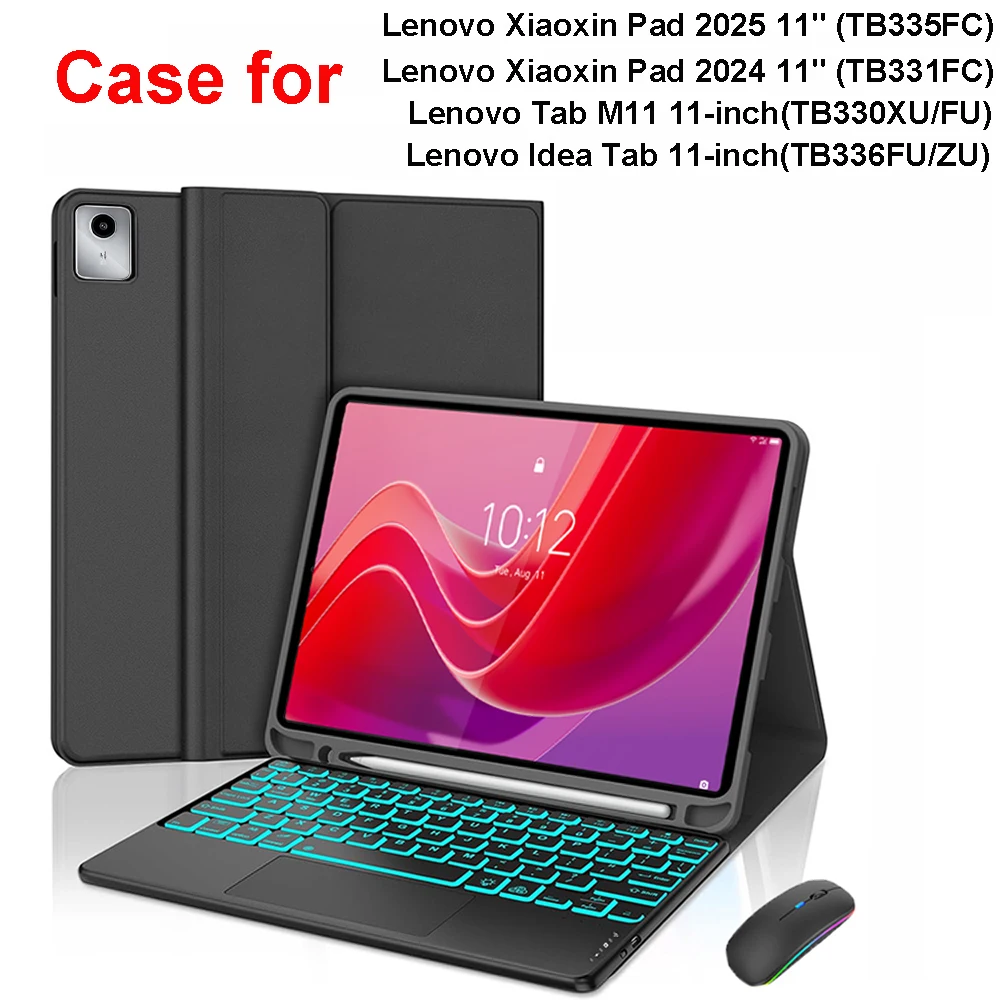
Case for Lenovo Tab M11 11inch,Bluetooth Keyboard cover for Xiaoxin Pad 11 in 2024/2025,for Lenovo Idea Tab 11 Smart Stand Cover
Return&refund policy
Eligible items are covered by return and refund support. If the item does not arrive or is not as described, the buyer can request help.
Security & Privacy
Safe payments: We do not share your personal details with any third parties without your consent.
Secure personal details: We protect your privacy and keep your personal details safe and secure.
AI offer for your market
A curated pick based on category, shipping route, delivery speed and popularity in your selected market.
Why this product fits your market
- • Strong customer signal: 4.5★ from 32 reviews.
- • Recommendations focus on this product category and your market availability.


Product specifications
Detailed product description
This product is shown with available options, market-specific pricing and verified specifications.
- Brand: NONE
- Sales: 2000+
- Package size: 31 × 28 × 5 cm
- Package weight: 0.738 kg
- Rating: 4.5 / 5
Before adding to cart, choose an available option and check the quantity.
Please confirm your machine model before purchasing~
For Lenovo Tab M11 11-inch(TB330XU/FU)
Lenovo Idea Tab 11-inch(TB336FU/ZU)
Lenovo Xiaoxin Pad 11-inch 2024(TB331FC)
Lenovo Xiaoxin Pad 11-inch 2025(TB335FC) Tablet.
Please confirm the language keyboard you need
we will customize the engraving keyboard language for you according to your choice
Please confirm each combination of the product before purchasing. Note the first basic image of each color version, which will most accurately reflect the color combination of the product.
Please confirm the keyboard language before purchasing, we will deliver the goods to you according to the color combination you have selected
Comfortable solution to your office, study and entertainment needs.
Magnetdesign
Magnetdesign -Verhindern Sie, dass die Tastatur herunterfallt
Abnehmbare Bluetooth-Tastatur - kann die Tastatur leicht entfernen
Automatischer Schlaf-/Wake-Energy-ErhaltungTriangular stable design
Stable support, anti-slip protectionHoneycomb back design
great heat dissipation effectBacklit keyboard
Switch cool lights at will
How to connect keyboard & Mouse?
1,Connect the mouse first, then connect the keyboard.
2,Mouse:Push the switch to the "Bluetooth" icon, find the Bluetooth connection with "Mouse" in the device Bluetooth list.
3,Normal Keyboard:Push the switch in the upper right corner to "ON", press "Connect", and find the Bluetooth connection with "Keyboard" in the device Bluetooth list.
4,Touchpad Keyboard:turn on keyboard,press Fn+C to,then find the Bluetooth connection with "Keyboard" in the device Bluetooth list.
Non-touch keyboard Bluetooth connection stepsTouch keyboard Bluetooth connection stepsFAQ
Q:What should I pay attention to when connecting the mouse for the first time?
A:When the mouse is connected for the first time, you need to press the left button, the right button and the scroll wheel at the same time for about 3-5 seconds.
Q: Is the scroll direction of the mouse USB connector and Bluetooth connection the same?
A: No, they are different. When using the USB connector, the scroll wheel slides in the same direction as the computer mouse. Bluetooth connection is the opposite.
Q: How to switch between different systems?
A: Fn+Q=Android, Fn+W=Windows, Fn+E=IOS.
Please note that please switch the system before connecting the tablet.
Q:The bluetooth keyboard letters are messy?
A: Please check the settings according to the prompts
a. Check whether the keyboard language set on the device is English.
b. Disconnect the keyboard Bluetooth, click Ignore the connected device, reopen the Bluetooth keyboard, select system, Fn+E (IOS system).
Note: Fn+Q=Android, Fn+W=Windows, Fn+E=IOS
c. Press the L S Z buttons at the same time to reset the keyboard
Q:How to configure the input method for different languages keyboard?
A:Take the samsung tablet as example,open "Settings--"ystem"--"Language & input"--"Add New Keyboard". (For other systems, please set them in the system settings according to the tips of the iPad example.)
Q:How does the mouse change teh scroll wheel sliding direction on the device?
A: The mouse is connected, open "General" - "Trackpad & Mouse" - close "Natural Scrolling".